
Test your screen in seconds — right in your browser
BestScreenTester runs a full suite of free display tests: dead pixels, color, backlight bleed, refresh rate, ghosting and more. No install, no sign-up.
Quick full-screen colors
Tap a color to fill your screen instantly. Use ← / → to switch, Esc to exit.
Panel & Backlight




Color & Calibration




Motion & Timing

Fun & Utilities


Free online screen tester
No downloads required. Run screen tests directly in your browser with pixel-perfect fullscreen precision.
Pixel-level dead pixel detection
Multi-color fullscreen, frame-by-frame scanning to precisely locate bright spots, dark spots, and stuck pixels. 8+ solid-color backgrounds with keyboard shortcuts make every abnormal pixel visible.
Color & greyscale analysis
Full-spectrum testing covering color, gamut, greyscale, banding, and depth. sRGB/DCI-P3 gradients and 256-level greyscale transitions help you judge your panel's true performance.
A complete screen-test suite
Dead pixels, backlight bleed, greyscale, color, gamut, refresh rate, ghosting, blooming and more — 20 focused tools for every screen-testing scenario.
Free · no download
BestScreenTester runs entirely in your browser — nothing to install. Works on phones, tablets, laptops, monitors, and TVs.
Why choose BestScreenTester?
A focused screen-testing toolkit covering every quality dimension.
Pixel-perfect precision
Pure-color fullscreen ensures test patterns cover every physical pixel. Keyboard shortcuts and multiple modes leave no defect undetected.
All devices supported
Phones, tablets, laptops, monitors, TVs — anything with a screen and a browser. No software or driver installation needed.
Complete test coverage
Dead pixels, backlight bleed, greyscale, color, gamut, refresh rate, ghosting, blooming — every display-quality metric in one place.
How to get started
Three steps to fully understand your screen's quality.
Choose a test tool
Pick dead pixel, backlight bleed, color, or another test for your need. New to this? Start with the dead pixel test — step one of any screen inspection.
Go fullscreen
Click Start to fill the entire screen with the test pattern. Use the arrow keys or tap to cycle, and examine every corner carefully.
Review & judge
Compare against quality standards: ≥1 bright pixel or severe bleed warrants a return. Check our guides for detailed criteria.
Core testing tools
The essentials for inspecting any display.
Dead Pixel Test
Solid-color fullscreen frame-by-frame scan. Detects bright pixels (always-on), dark pixels (unresponsive), and stuck pixels (fixed color). The essential first step for any new screen.
Backlight Bleed
Pure black fullscreen in a dark room to reveal LCD backlight leakage and IPS glow. Distinguishes fixed bleed (a defect) from IPS glow (a normal characteristic).
Greyscale Test
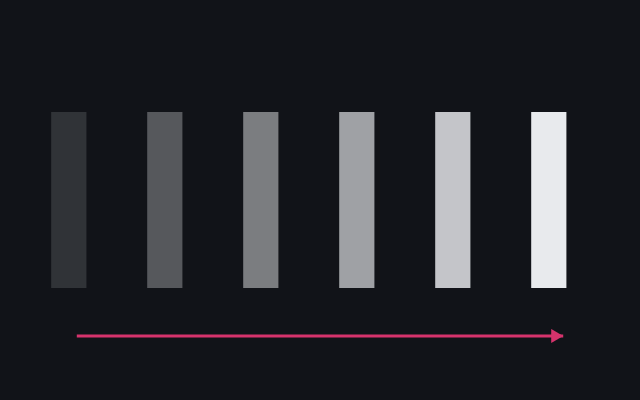
256-level greyscale transition smoothness check. Reveals shadow crushing, highlight clipping, and color banding. Best used alongside gamma calibration.
Color Accuracy
Standard solid-color comparison for tint diagnosis. Grey backgrounds are the most sensitive — a green or red cast on grey points to color-accuracy issues.
Color Gamut
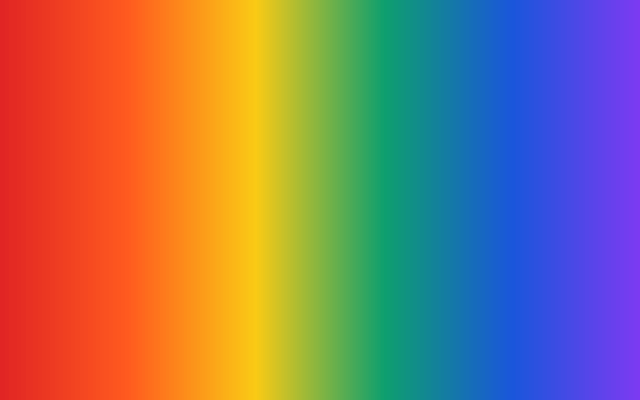
Smooth full-spectrum gradients to judge sRGB / DCI-P3 coverage and saturation. Instantly sanity-check a wide-gamut claim and spot transition banding.
Refresh Rate
Real-time frame-rate detection to verify your panel's actual refresh rate. Advertised 144Hz but outputting 60Hz? This tool catches the configuration issue.
Ghosting Test
Moving-block test for response time and grey-to-grey transition speed. IPS ~1ms, VA ~4–15ms — dark-scene ghosting is VA's biggest weakness.
Blooming Test
Mini-LED local-dimming precision test. A bright object on black reveals the halo overflow range — higher zone counts produce less blooming.
Screen troubleshooting guide
Seeing a display issue? Use these for self-diagnosis.
Bright or dark spots on screen
- 1.Confirm with a solid-color fullscreen first — rule out dust on the glass.
- 2.Verify the same spot appears across multiple solid colors.
- 3.≥1 bright pixel or several clustered dark pixels — consider a return within the window.
- 4.Screenshot/photograph the defect location as return evidence.
Screen edge light leakage
- 1.Dark room + pure black fullscreen + maximum brightness.
- 2.Distinguish IPS glow (shifts with viewing angle) from true bleed (fixed position).
- 3.Assess severity at normal seating distance (50–70cm).
- 4.Severe bleed warrants a return; IPS glow is a normal characteristic.
Inaccurate or shifted colors
- 1.Set the display mode to sRGB or a factory-calibrated preset.
- 2.Avoid 'Vivid/Gaming' modes — they're inaccurate references.
- 3.Grey backgrounds are most sensitive — a tint on grey signals an accuracy issue.
- 4.For precise calibration, use a hardware colorimeter.
Wrong refresh rate / stuttering
- 1.Confirm the maximum refresh rate is selected in system display settings.
- 2.Check the cable — HDMI 2.0 only supports 4K@60Hz.
- 3.Laptops: confirm the dedicated GPU drives the panel (not the iGPU).
- 4.Some monitors require enabling high refresh in the OSD menu.
Device inspection guides
Specialized workflows for different devices and panel technologies.
Laptop screen test
Step-by-step laptop inspection: dead pixels, bleed, and the panel lottery.
Phone screen test
OLED burn-in, touch dead zones, tint — essential for used-phone checks.
TV screen test
Mini-LED blooming, backlight bleed, dirty-screen effect — do it after unboxing.
Monitor screen test
IPS/VA/OLED testing, refresh rate, and uniformity before the return window closes.
OLED screen test
Burn-in and image retention — comprehensive OLED-specific coverage.
Panel types explained
IPS bleed, VA ghosting, OLED blacks — which panel technology fits you.
Use cases
When a quick screen test pays off.
New device inspection
First thing after unboxing a monitor, laptop, or phone — dead pixels, bleed, color. Find issues inside the return window for easy exchanges.
Used devices
An essential pre-purchase check. OLED: look for burn-in. LCD: look for bleed. Verify the panel hasn't been swapped for a non-original part.
Design & color work
Designers and photographers confirming color accuracy and gamut. 100% sRGB is the minimum; wide P3 is preferred. Test before you calibrate.
Gaming optimization
Verify refresh rate, response time, and VRR are actually working. Catch the '144Hz advertised, 60Hz actual' problem before it's too late.
Frequently asked questions
Are these tools accurate?
We render pure color patterns in browser fullscreen, driving GPU output to every physical pixel — dead-pixel and bleed detection work on the same principle as professional gear. Color-accuracy checks rely on visual comparison; for precise data, pair them with a hardware colorimeter.
Do they work on phones and tablets?
Yes — every tool works in mobile browsers (iOS Safari / Android Chrome). For phone testing, turn off auto-brightness and set brightness to maximum for the most accurate results.
How many dead pixels are acceptable?
Strictly, any bright pixel is unacceptable — a constantly lit dot on black is very visible. One or two dark pixels at the edges may be marginal. Test within your return window; brand policies vary, but your consumer rights apply.
How long does testing take?
A quick test (dead pixels + bleed) takes about 5 minutes. A full inspection is roughly 20 minutes. Do a quick test immediately on arrival, and a full pass when you have time.
Why must I test in fullscreen?
Windowed mode leaves address bars and taskbars covering the screen edges — exactly where bleed and dead pixels are most common. Use each tool's Start/fullscreen button (or F11 on desktop) to ensure complete coverage.
Do I need a dark room?
Only backlight-bleed testing needs darkness. Other tests are best in normal lighting, since that's how you actually use the screen — dark rooms amplify details that are invisible in daily use and can cause unnecessary worry.
Screen testing tips
Small habits that make results more reliable.
Warm up 15–30 min
Color temperature and brightness are unstable before warm-up. Wait at least 15 minutes after boot before color and greyscale tests.
Disable enhancements
Turn off vivid mode, dynamic contrast, and HDR. Test in sRGB or Standard mode to avoid distortion.
Use native resolution
Non-native resolution triggers scaling that can hide dead pixels. Match system output to the panel's native resolution.
Use proper cables
DisplayPort 1.4 or HDMI 2.1. Budget cables may not carry high refresh/resolution, causing frame-rate anomalies.
Dark room for bleed
Backlight bleed must be tested in total darkness: pure black, max brightness. Focus on corners and bezel junctions.
Judge at normal distance
After a close-up inspection, step back to normal seating distance (50–70cm). Flaws only visible up close don't affect daily use.
Pixel-perfect precision for every screen
Inspecting a new display, testing a second-hand monitor, or diagnosing OLED burn-in — BestScreenTester gives you accurate screen-testing tools, all free, all in your browser.