
HDR Test: Does Your Screen Show HDR?
A real HDR image with brightness steps up to 1,600 nits, plus HDR detection.
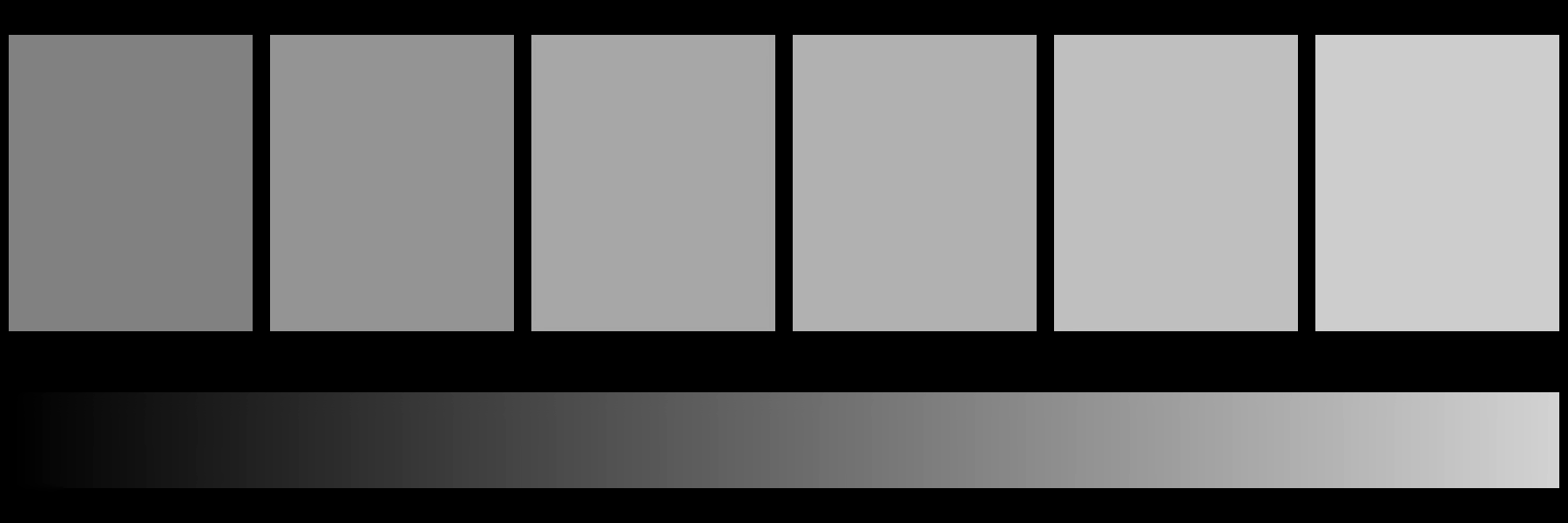 100 nits203 nitsSDR white400 nits600 nits1,000 nits1,600 nits0 → 2,000 nit ramp
How to use
- 1Turn HDR on first — on Windows, Settings > System > Display > Use HDR.
- 2Check the chips above the test: the browser should report an HDR display.
- 3Click Start. On a working HDR setup, the patches keep getting brighter past 203 nits (SDR white) up to your screen's peak.
- 4If every patch from 203 nits up looks the same white, the image is being shown in SDR.
- 5Press Esc to exit.
FAQ
Why do all the bright patches look the same?
The image is being shown in SDR: HDR is off in your operating system, the browser can't display HDR images, or the screen isn't HDR. Every patch above 203 nits then clips to the same white.
Where do the patches stop getting brighter?
At roughly your screen's peak brightness. An entry-level DisplayHDR 400 monitor tops out around 400 nits, so the 600, 1,000 and 1,600 patches look alike; a good Mini-LED or OLED keeps them apart further.
Which browsers show HDR images?
Support still varies by browser and operating system; Chromium-based browsers such as Chrome and Edge are currently the most consistent. If the chips say HDR is available but the patches look flat, try another browser.
Tips
- Turn HDR on in your operating system before opening the test.
- If the 1,000 and 1,600-nit patches look identical, you've found your screen's brightness ceiling.
Related tests




Related guides
Learn more about what this test reveals and how to act on the results.