
Screen Tearing, V-Sync, G-Sync, and FreeSync Explained
By BestScreenTester · Published · Updated
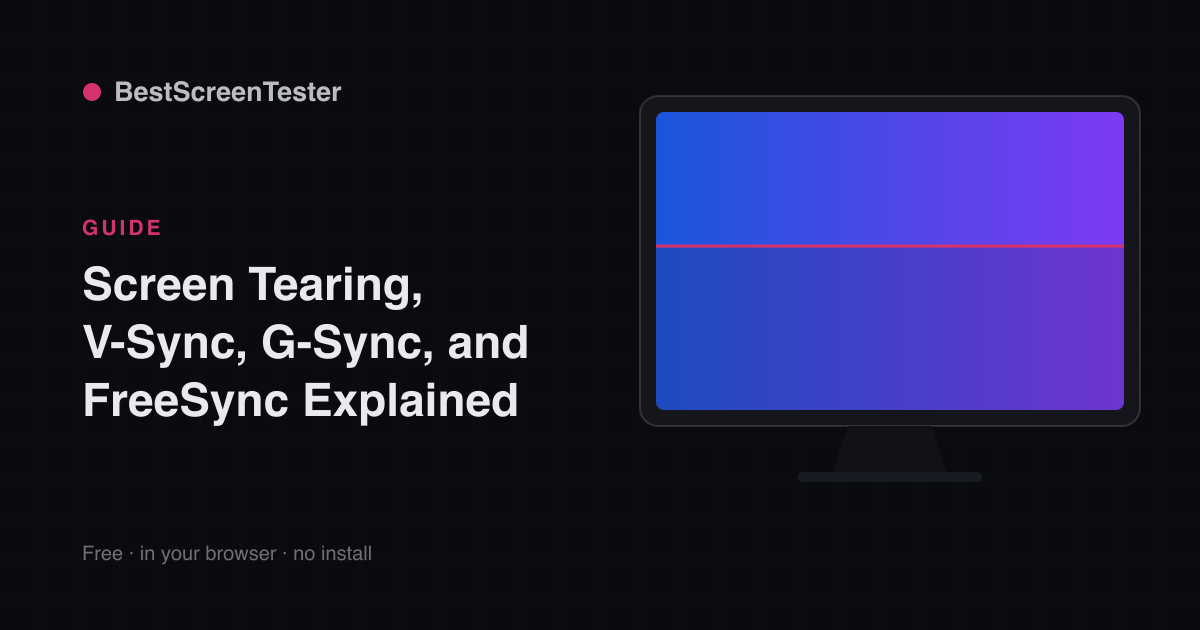
Tearing is a horizontal split where the top and bottom of the image are from different frames. It's most visible when you pan the camera sideways: a straight vertical edge — a doorframe, a lamppost, a wall — appears broken and offset partway down the screen.
Why it happens
Your GPU and monitor run on independent clocks. The monitor redraws the image at a fixed rate, top to bottom. If the GPU hands it a new frame partway through that redraw, the top of the screen keeps showing the old frame while the bottom shows the new one — a visible tear at the boundary.
It's worst when frame rate and refresh rate are mismatched, and it happens both above and below the refresh rate. At 200fps on a 60Hz monitor you may get several tear lines on screen at once. At 45fps on a 60Hz monitor you get one that drifts slowly down the screen, which many people find more distracting.
The fixes
- V-Sync — makes the GPU wait for the monitor's next refresh before swapping frames. Stops tearing but adds input lag, and when the frame rate dips below the refresh rate it can halve the presented rate (60 to 30), producing obvious stutter.
- Fast Sync / Enhanced Sync — a variant that renders freely and shows only the most recent complete frame. Tear-free with less lag than V-Sync, but only works well when the frame rate is far above the refresh rate.
- Adaptive sync (G-Sync / FreeSync / VESA Adaptive-Sync) — the monitor varies its refresh rate to match the GPU's frame rate in real time. Smooth, tear-free, and low lag. This is the modern answer.
- A frame-rate cap — on its own, capping just below the refresh rate reduces how often tears appear and keeps latency low. Combined with adaptive sync, it's the standard setup.
Getting adaptive sync working
- Confirm the monitor supports it and enable it in the OSD. Many panels ship with it off, and some hide it under a name like Adaptive-Sync or VRR.
- Enable G-Sync/FreeSync in your GPU control panel — NVIDIA and AMD both keep it in their display or gaming settings, though the exact menu name moves between driver versions. Enable it for both fullscreen and windowed mode if the option exists.
- Use a cable and port that can carry it at your resolution and refresh rate. DisplayPort is the safest choice on a PC; HDMI 2.1 is what you want on a console or TV, where the feature is usually listed as VRR and often needs enabling per-input alongside a game or enhanced-format setting.
- Stay within the monitor's variable-refresh range (for example 48 to 144Hz). Below the range, behavior falls back — many displays use low framerate compensation, which repeats frames to keep the panel inside its range. Many people enable V-Sync in the driver too, only to catch frames above the range, and then cap the frame rate a few frames below the maximum so V-Sync never actually engages.
- Check the game is running in fullscreen or borderless with the OS compositor cooperating. Windows handles VRR in windowed mode on modern versions, but some titles still only get it exclusively fullscreen.
If enabling it produces flicker on dark loading screens or in menus, that's a known behavior on some panels when the frame rate swings wildly — a frame cap usually settles it.
Tearing that isn't a game
Tearing while scrolling a web page or dragging a window points somewhere else: a stale or wrong-refresh display mode, a browser with hardware acceleration disabled, or on a laptop a mismatch between the integrated and discrete GPU. Start by confirming the OS is actually driving the panel at its rated rate — see How to Enable Your Monitor's Full Refresh Rate (Windows & Mac) if it isn't obvious in display settings.
macOS composites everything and does not tear on the desktop the way Windows can, so persistent desktop tearing on a Mac usually means an external display running an odd mode or a hub or adapter in the chain.
Tearing vs stutter vs ghosting
These get mixed up constantly, and the fixes have nothing in common:
- Tearing — the image splits horizontally. Sync problem.
- Stutter — motion hitches while the image stays whole. Frame pacing or performance problem.
- Ghosting — a faint trail follows moving objects. Pixel response problem, covered in What Is Ghosting and How Do You Fix It?.
- Input lag — the picture is smooth but the controls feel late. Different measurement entirely; see Response Time vs Input Lag.
Verify motion
Watch a tear appear and vanish as you toggle sync with the Screen Tearing Test. Confirm your true refresh with the Refresh Rate Test and check trailing with the Ghosting Test once sync is on — turning on adaptive sync changes the effective refresh rate constantly, and some panels overshoot on their overdrive setting when it does.